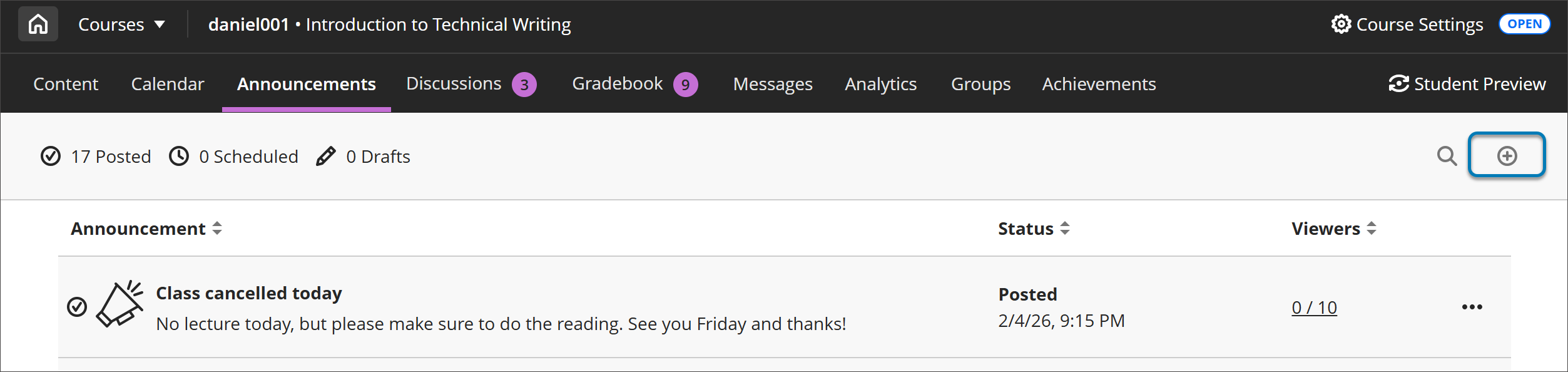
On the Announcements page, select the Create Announcement button that appears as a plus sign to create a new announcement.
Enter a title and message for the announcement. Use the options in the message editor to format text, embed multimedia, and attach files.
You can insert a video recording in your course announcements, view the Kaltura KB for steps and a video of the process.
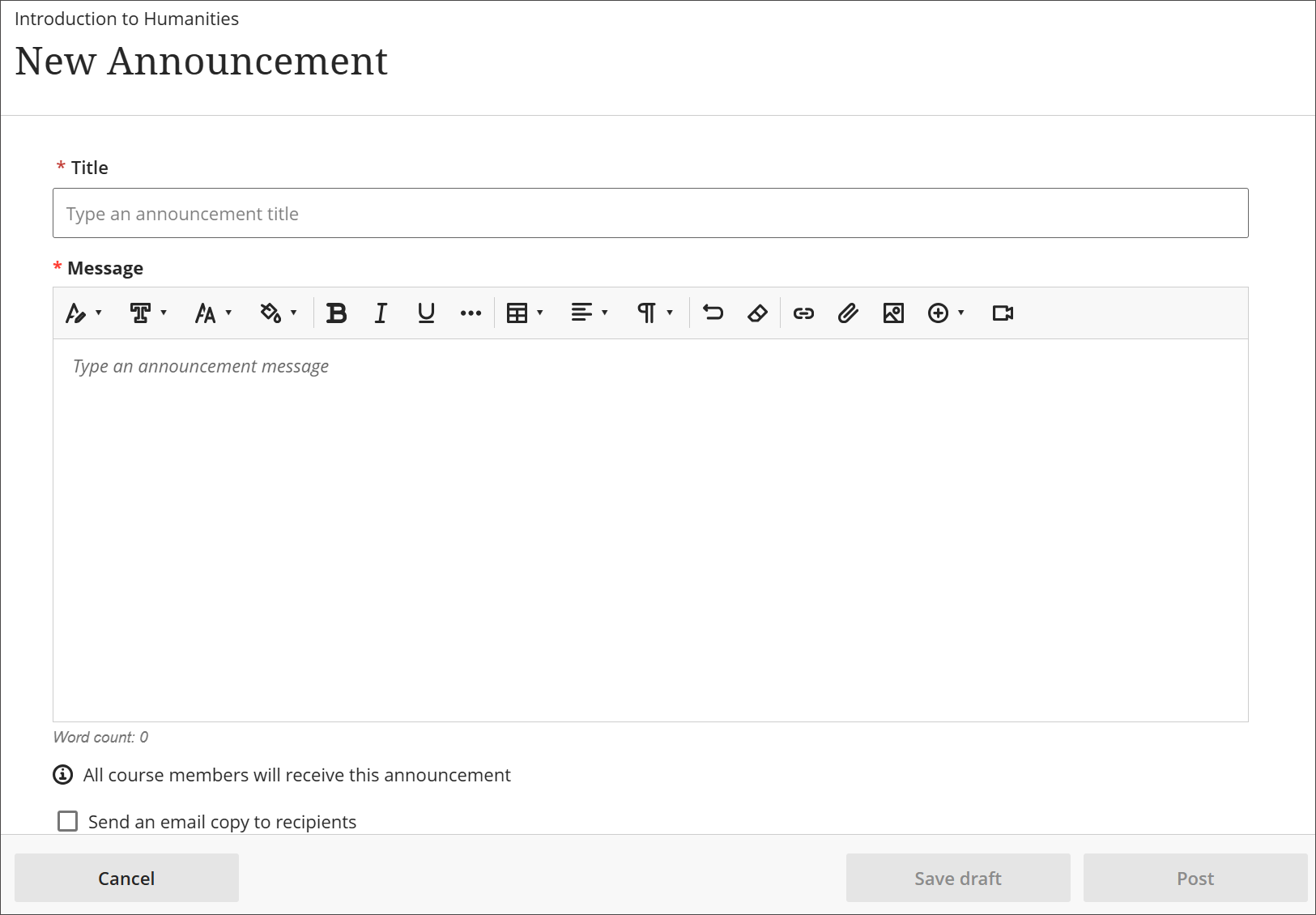
You can also send an email copy to all course members, including yourself. Select Send an email copy to recipients. Recipients must have a valid email address in the system. Emails about announcements are always sent and aren't controlled by your institution’s global notification settings.