Body
Start student preview
To start, select Student Preview mode in the top right corner.
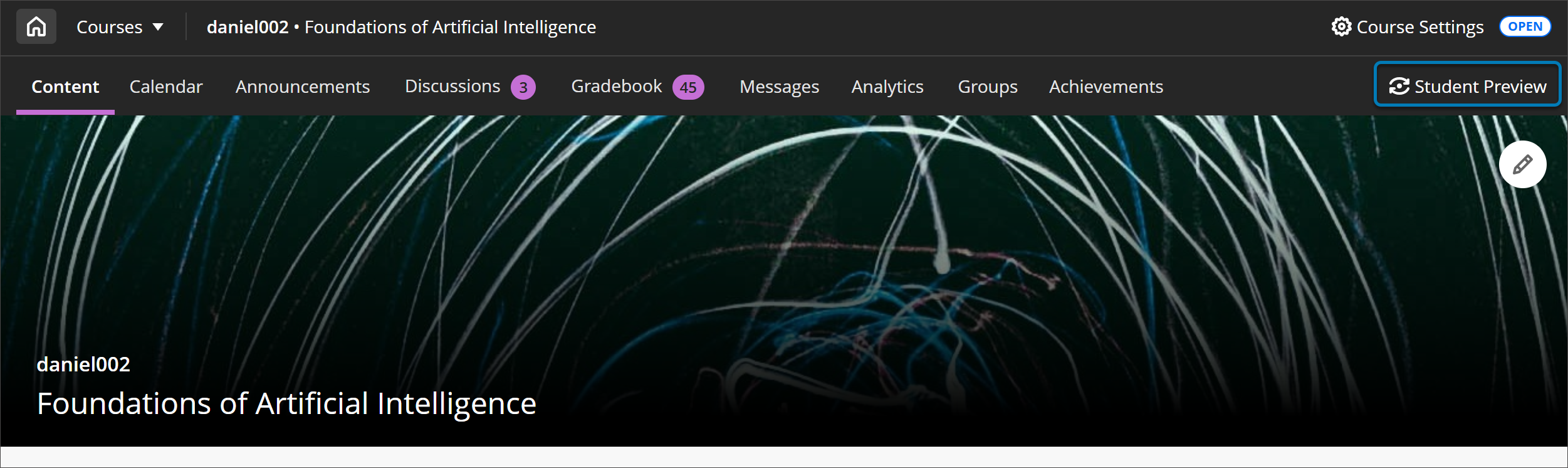
Student preview creates a student account, called the preview user.The student preview bar appears at the top of each page.
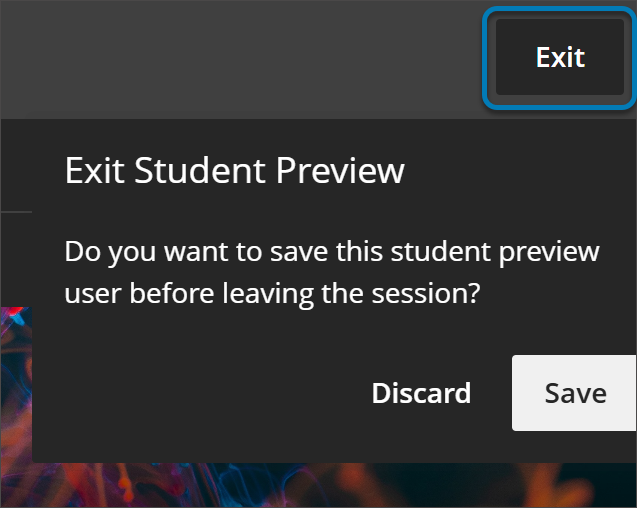
Exit Preview
Click Exit to return to the instructor view. It will then ask if you want to save or delete the preview student and data.
Remove student view from roster
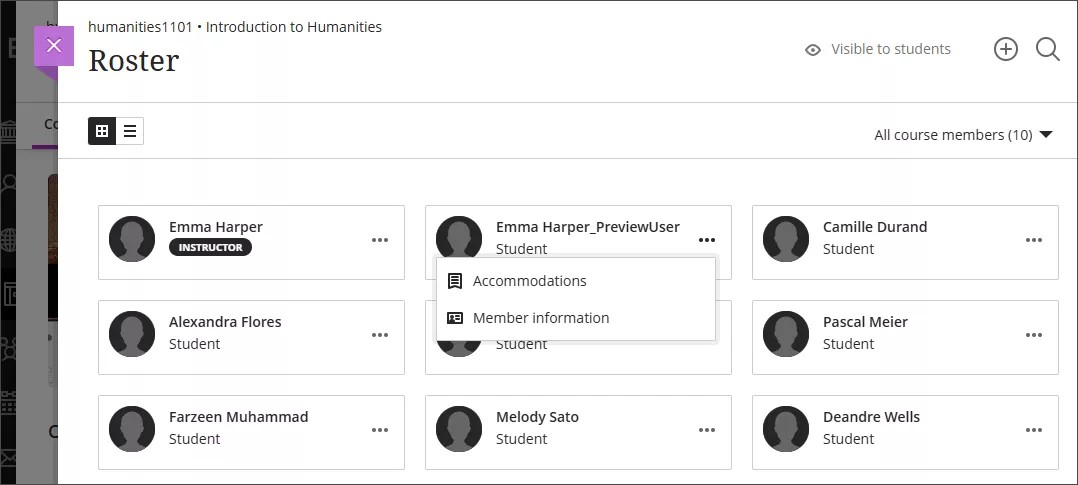
On the Roster page, access your preview user's menu. Select Edit member information to open the Member Information panel.
Select the Remove Member icon to remove your preview user from your course. Your institution controls if you can remove members.
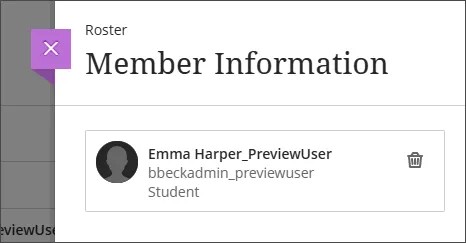
After you remove your preview user, you can start student preview again. A new instance of the preview user is created.