How to create a Web Link in your Course

Tags web link course

Creating Course Links

 Select the plus option on the Course Content page where you want your link to appear. Select create and then the Link option. 

Image of Course Content page with Create Item panel open. A blue box highlights the Link option in the Create Item menu.]

When you add a course link at the Course Content page, you can add course links to any content item. 

image of Create Course Link tab with a blue box highlighting the Keyword field of the Search Criteria panel and a blue box highlighting the Search Criteria panel

Please follow the instructions on the following website for posting a web link in Bb:https://help.blackboard.com/Learn/Instructor/Ultra/Course_Content/Create_Content/Create_Course_Materials/Link_to_Websites

Create Web Link

 Select the plus option on the Course Content page where you want your link to appear. Select create and then the Link option. 

Image of Course Content page with Create Item panel open. A blue box highlights the Link option in the Create Item menu.]

Select the Create Web Link tab to add a web link. Add a display name and paste the URL. When you are ready, select save. 
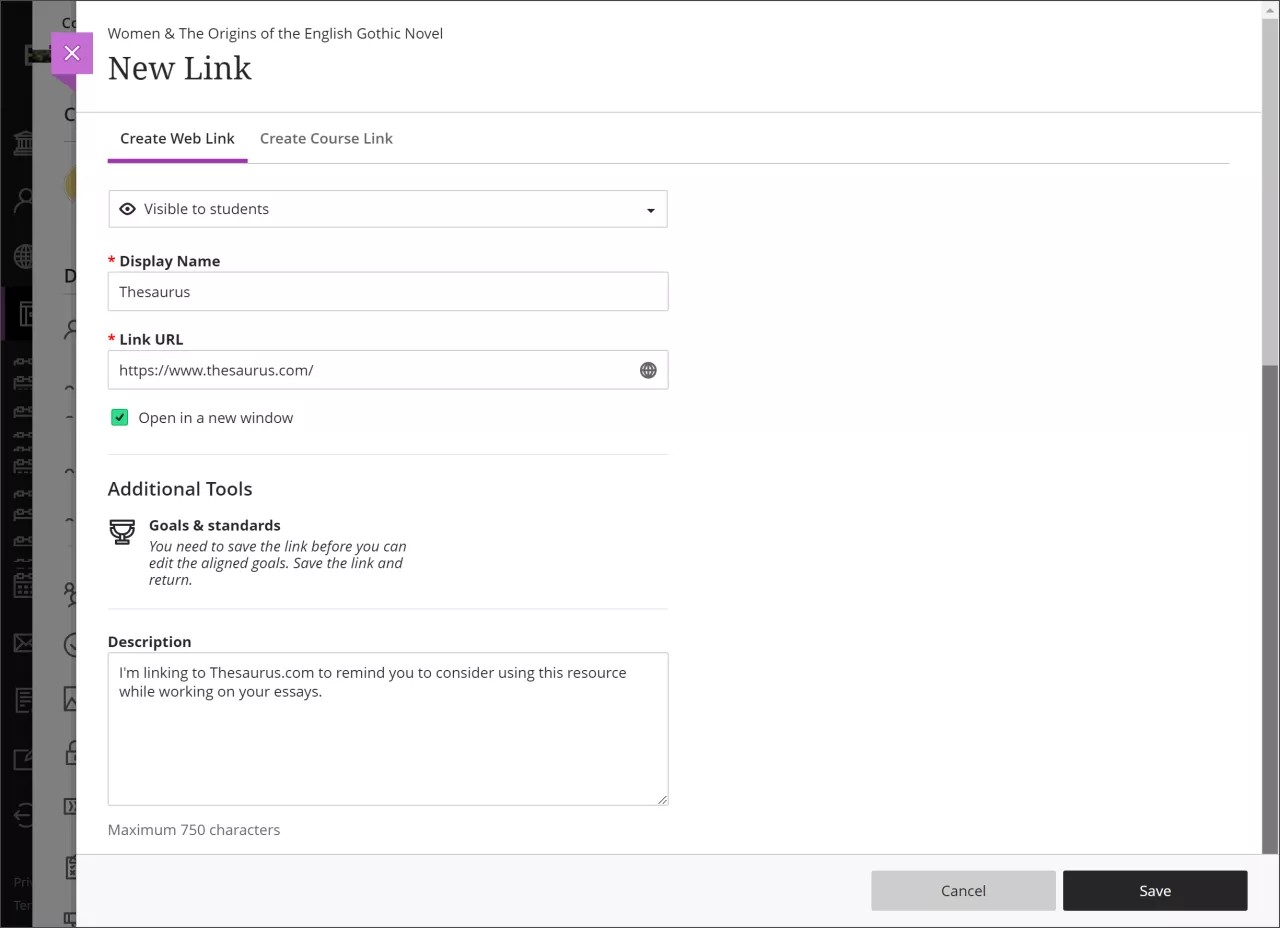
Image of Create Web Link tab in New Link page