Overview
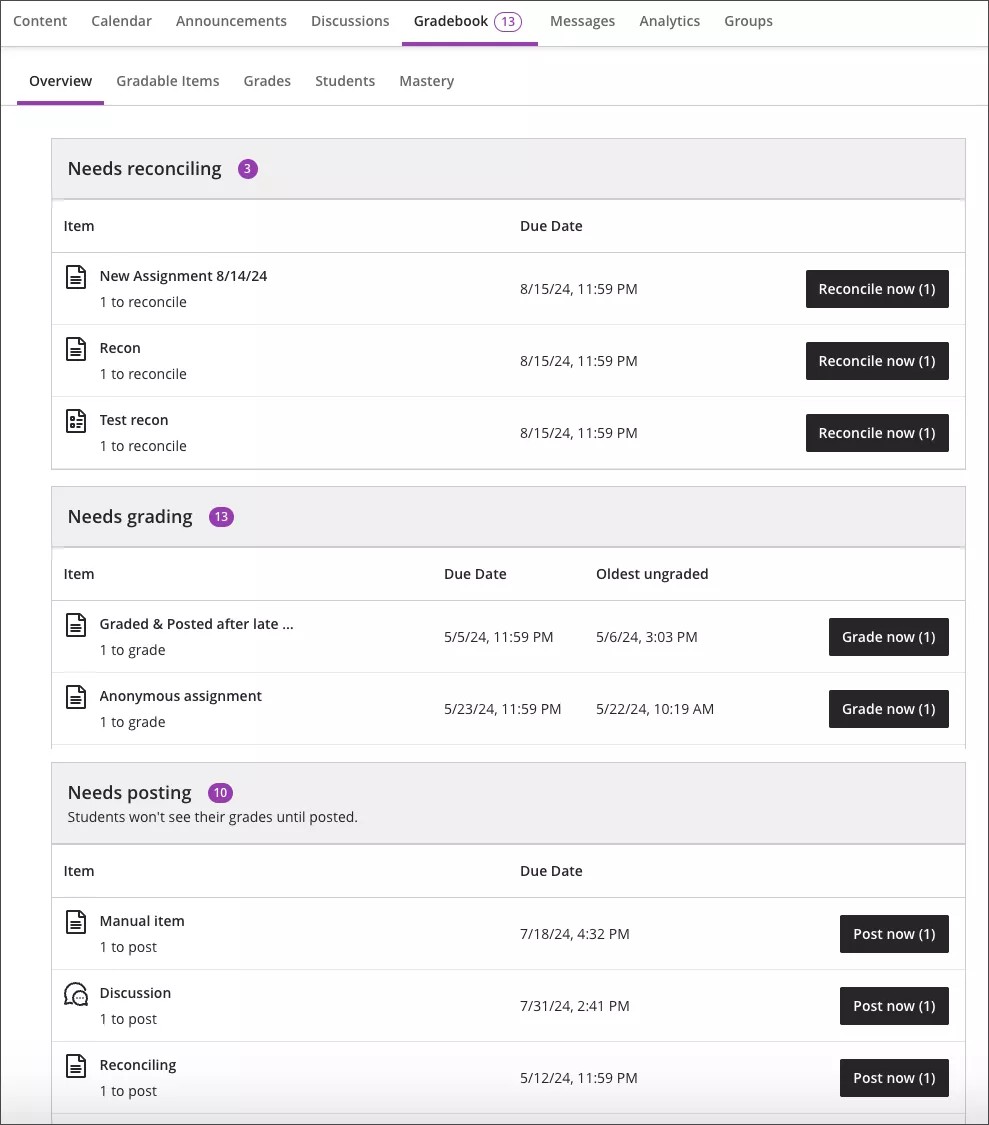
The Overview view displays grading tasks for you to complete:
- Needs reconciling- Click on Reconcile now to view all submissions for an item
- Needs grading- Submissions that are ready for grading. Select Grade now to open the submission and begin grading.
- Needs posting- Graded assessments that are ready to be posted, students will not see their grade until it is posted.. Select Post now to immediately post the graded assessment.
Gradable items
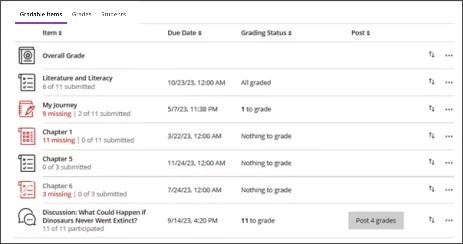
The Gradable Items view displays all gradable items in your course. You can view due dates, grading status, and item categories.
- Items with missing submissions past the due date display in red.
- Use the move button to drag and drop items in a new order.
- Select an item’s name to go to its Submissions or Grades & Participation page.
- Select X to grade to go directly to the assessment’s Submissions page and start grading
Grades
The Grades view displays each student’s grade for a specific assignment, with one student per row and one gradable item per column.
In the grid, you can select a student’s gradable item to open a menu with these options:
- View — Go directly to the assignment submission and start grading.
- Feedback — Enter feedback for overridden test/assignment grades and automatic zeros.
- Post — Post a grade that’s been assigned but not yet posted.
- Add or edit exceptions — If an assignment is timed or has a due date, you can add exceptions here, as well as allow multiple attempts.
- Add or edit exemptions — You can remove an assignment from being counted towards a student’s overall grade.
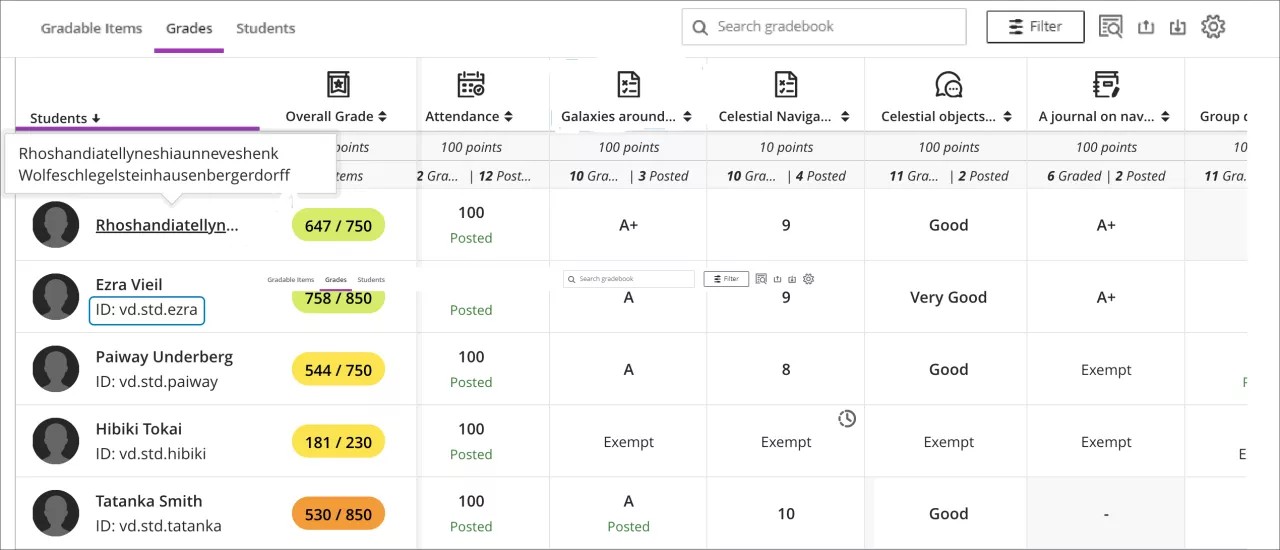
The student grid contains color-coded text:
- Green — Posted grades
- Red — Automatic zeros
- Purple — New submissions
When you select a gradable item at the top of the Grades view, a menu opens with options to edit or delete the item or send a reminder. Additional options including Question Analysis, Download Results, Statistics, and Download Submissions are available based on the type of gradable item and whether students have made submissions.
Students
The Students view lists the names of all your students with their dates of last access and their overall grades. You can view overall grades if you’ve set up the overall grade for the course. Students with grading accommodations have a purple flag with their name.
- You can directly message students and add accommodations from the Students view.
- Search for particular students by name, username, or student ID. If you don’t see usernames, your institution’s privacy policies are keeping usernames hidden.
- Select a student’s name to go to their student overview.
Delete Grade Center Columns
Follow these steps to remove unwanted columns in your grade center. For example, duplicate copies of the Total or Weighted Total columns that came in from a course import process (please note that you must have one copy of each of those columns in your grade center to enable final gradebook submission).
1. In your course shell go to the Gradebook tab and select grades.
2. Click on the gradebook item to open the drop-down menu.
3. At the bottom of the list, select Delete Column and click OK. This cannot be undone.

*Note: If the Delete Column option is not displayed then that column is still linked with a graded activity within your Blackboard course shell. You will need to delete that activity (e.g. Assignment, Test, Discussion Board) before removing the grade center column.